Batch Exporter — Convert Entire Folders to .c4d
Point it at your folders, hit Start. MAX2C4D exports each .max file via headless 3ds Max and imports into Cinema 4D automatically — no manual steps, no babysitting.
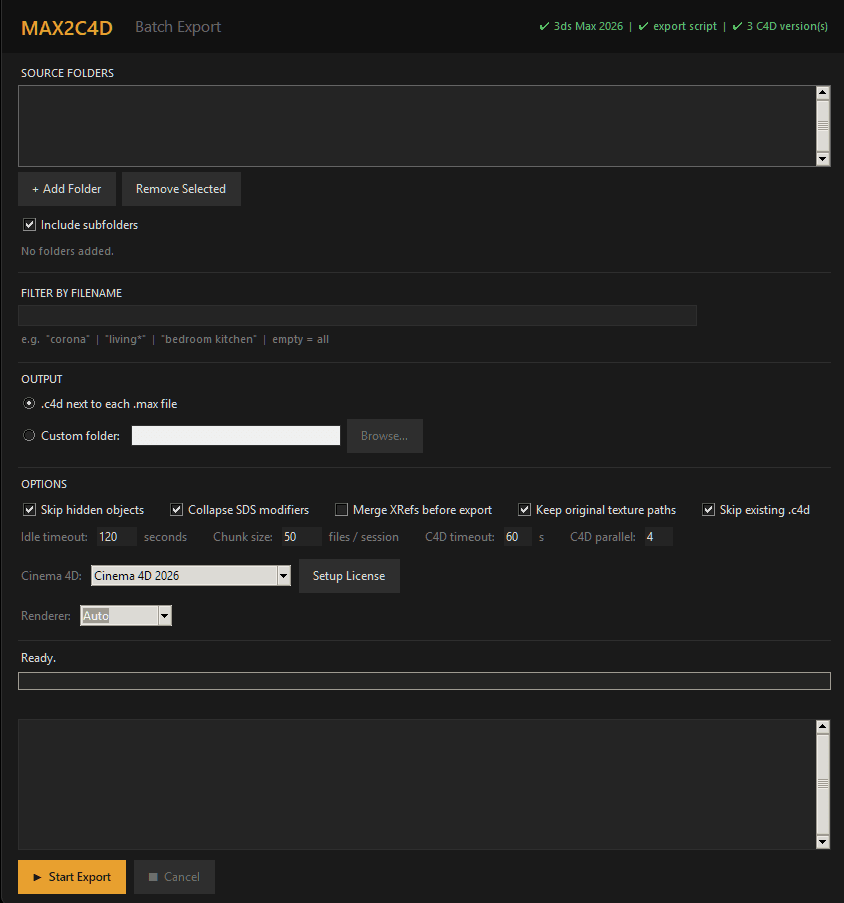
Multi-Folder Source
Add as many source folders as you need. Enable "Include subfolders" to scan recursively — the app finds every .max file and shows you the total count before you start.
- ✓Add multiple source folders from anywhere on disk or network
- ✓Recursive subfolder scanning with one checkbox
- ✓Real-time file count updates as you add or remove folders
- ✓Remove individual folders from the list without starting over
Filename Filtering
Don't need to convert everything? Filter by filename using glob patterns or keywords. The match count updates live as you type — you see exactly how many files will be processed before hitting Start.
Examples
"corona"All files containing "corona" in the name"living*"All files starting with "living""bedroom kitchen"Files containing both "bedroom" and "kitchen"emptyNo filter — process all .max filesFlexible Output
Choose where the converted .c4d files end up.
.c4d next to each .max
The .c4d file is saved right next to the original .max file — same folder, same name, different extension. Your existing project structure stays intact.
Custom output folder
All .c4d files go to a folder you choose. Directory structure from the source is preserved so you don't end up with a flat pile of files.
Export Options
Fine-tune the export behavior per batch. Every option has a tooltip in the app explaining exactly what it does.
Skip hidden objects
Ignore objects with the Hidden flag in 3ds Max. Reduces export noise and speeds up processing.
Collapse SDS modifiers
Bake TurboSmooth and MeshSmooth modifiers before export. Required for correct geometry in Cinema 4D.
Merge XRefs before export
Merge all XRef files into the scene before exporting. Slower but ensures all referenced geometry is included.
Keep original texture paths
Reference textures at their original location on disk instead of copying them. Uncheck to collect textures into the export folder.
Skip existing .c4d
Skip files that already have a .c4d next to the .max. Useful to resume an interrupted batch without re-converting everything.
Performance & Reliability
Batch converting hundreds of files means things can go wrong — Max crashes, scenes hang, memory runs out. The Batch Exporter handles all of it automatically.
Idle timeout
Kill Max only when no progress is detected for N seconds. A slow but working export is never killed — only truly stuck sessions.
Chunk size
3ds Max leaks memory across scenes. Splitting into chunks (e.g. 50 files per Max session) prevents crashes on large batches.
C4D parallel import
Run multiple c4dpy instances simultaneously to import .c4d files in parallel. 2-4 instances recommended depending on your RAM.
Crash recovery
3ds Max crashed mid-batch? The exporter automatically relaunches Max and picks up from the next file. No manual restart needed.
Headless Execution
3ds Max runs on a hidden Windows desktop — no visible window, no dialogs, no popups that block execution. The dialog monitor automatically dismisses any system prompt. Hit Start and keep working on something else.
- ✓Hidden desktop isolation — Max never appears on your screen
- ✓Dialog monitor auto-dismisses any prompt or warning
- ✓Quiet mode suppresses all Max UI interactions
- ✓Scene converter and security dialogs disabled automatically
Cinema 4D Integration
The Batch Exporter auto-detects every installed Cinema 4D version that has the MAX2C4D plugin. Select which C4D version to use from a dropdown, configure the license once, and the importer runs via c4dpy in the background.
- ✓Auto-detection of all Cinema 4D installations with the MAX2C4D plugin
- ✓Dropdown to select the Cinema 4D version for import
- ✓Renderer selector — force Auto, Corona, V-Ray, or Redshift pipeline per batch
- ✓One-click c4dpy license setup (Maxon App, Account, License Server, or RLM)
- ✓Parallel c4dpy import — configurable number of simultaneous instances
- ✓Per-import timeout to catch stuck conversions
Real-Time Progress
Know exactly what's happening at every step. The log shows per-file status with elapsed time, and a final summary tells you how many succeeded, failed, or were skipped.
Progress bar
Overall batch progress with percentage — see at a glance how far along you are.
Per-file status
Each file shows its current phase (loading scene, exporting, importing) with elapsed time.
Color-coded log
Green for success, red for errors, yellow for warnings, orange for headings. Scroll through the full history.
Final summary
Total OK, total errors, C4D import results — one line to know if the batch was clean.
Settings Persistence
Every setting you configure — source folders, filters, output mode, export options, timeouts, renderer choice — is automatically saved and restored the next time you open the Batch Exporter. No re-configuration between sessions.
- ✓All settings saved to a local JSON file automatically
- ✓Source folders, filters, and output mode restored on launch
- ✓Export options and performance tuning remembered between sessions
- ✓Renderer and C4D version selection persisted
Batch Report
After every batch, a detailed text report is generated with per-file results, timing, and error details. Share it with your team or keep it for your records.
Report includes
Total files processed, OK count, error count, skip count at a glance.
Separate counts for Cinema 4D import results — OK vs errors.
Each file listed with its status (OK, ERROR, SKIP) and the reason if it failed.
Total elapsed time and timestamp — know exactly when the batch ran and how long it took.
Stop rebuilding your
entire scene by hand.
Every hour you spend rebuilding materials, relinking textures, and reconfiguring lights and render settings is an hour you're not rendering, not iterating, not billing. MAX2C4D pays for itself on the first scene.
1-year license — not a subscription. Nothing renews automatically.